
Updating the firmware
From time to time we release improvements for your ROCK your BABY. Updating takes a couple of minutes and happens right in your web browser — no software to install.
What you need
Section titled “What you need”- Your ROCK your BABY and a USB cable
- A computer (Windows, Mac or Linux) with Google Chrome or Microsoft Edge and an internet connection
Step by step
Section titled “Step by step”-
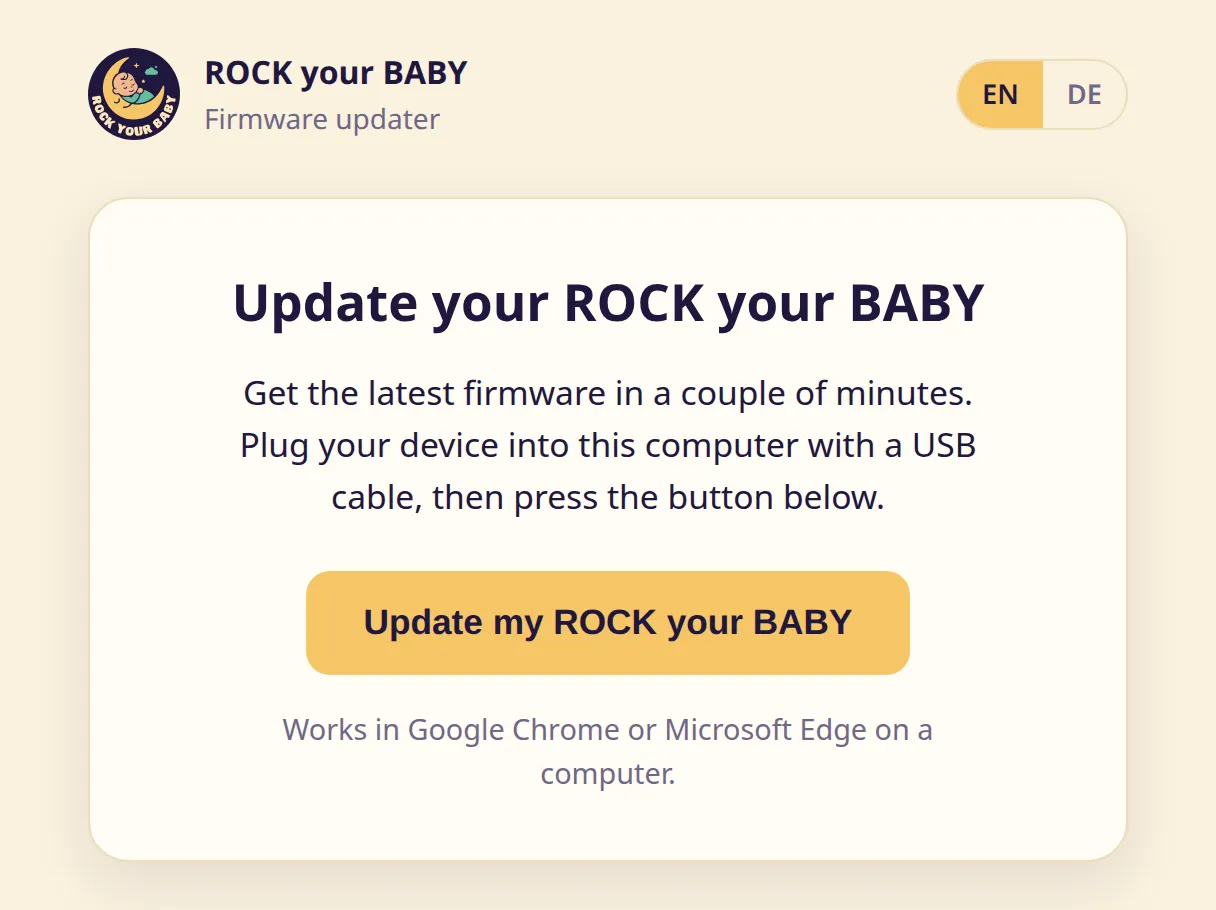
On your computer, open Chrome or Edge and go to https://updater.cullatecinternal.com. The “EN”/“DE” toggle at the top right switches the page between English and German.
-
Plug your ROCK your BABY into the computer with the USB cable, switch it on and click “Update my ROCK your BABY”.
-
Click “Choose my device” and pick your ROCK your BABY from the small list your browser shows. On Windows it appears as “Pico Serial (COM…)”; on macOS and Linux it’s called “ROCKyourBABY”. Usually it’s the only entry — if you do see several, it’s safe to try them all.
[SCREENSHOT: the browser’s device chooser with the device selected]
The page reads your device’s information and checks for the latest firmware.
-
If you’re already up to date, the page says “You’re up to date” — you’re done, unplug the device.
If an update is available, you’ll see your current version and the latest one. Click “Update now”.
-
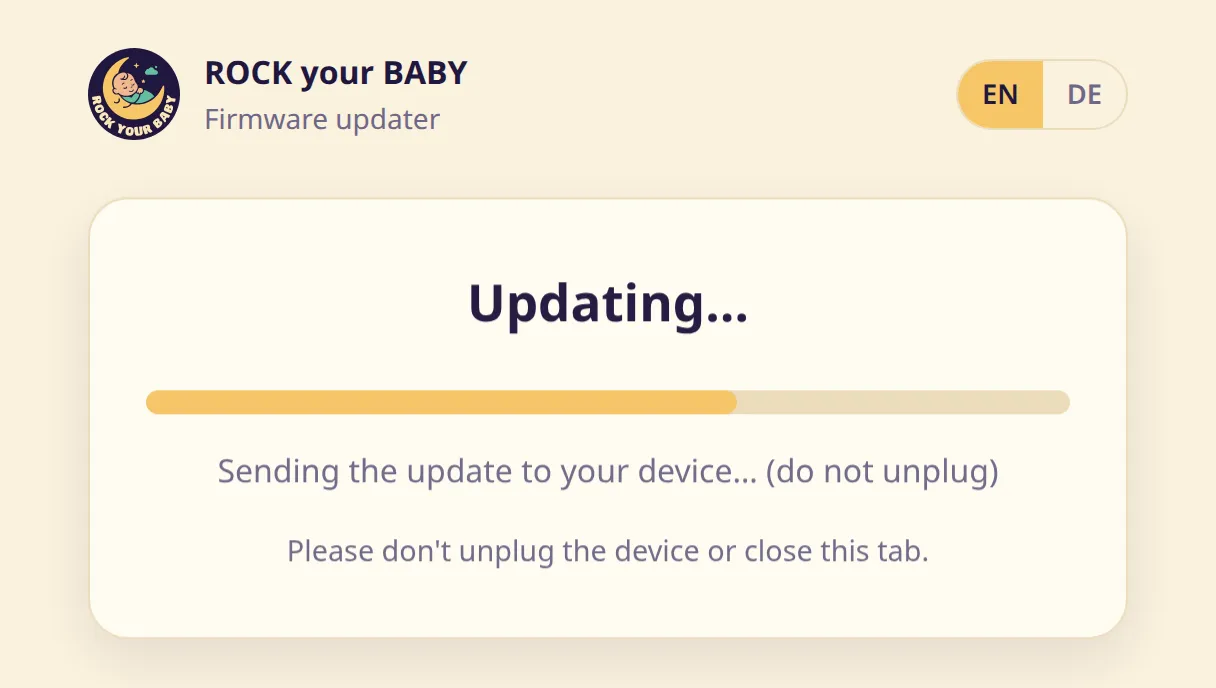
Wait while the progress bar runs (“Updating…”). The update is sent to the device directly over the USB cable — there’s nothing else for you to do. At the end, the device installs the new firmware and restarts by itself; the page then checks automatically that everything worked. Keep the device plugged in and don’t close the browser tab. The whole thing takes well under a minute.
-
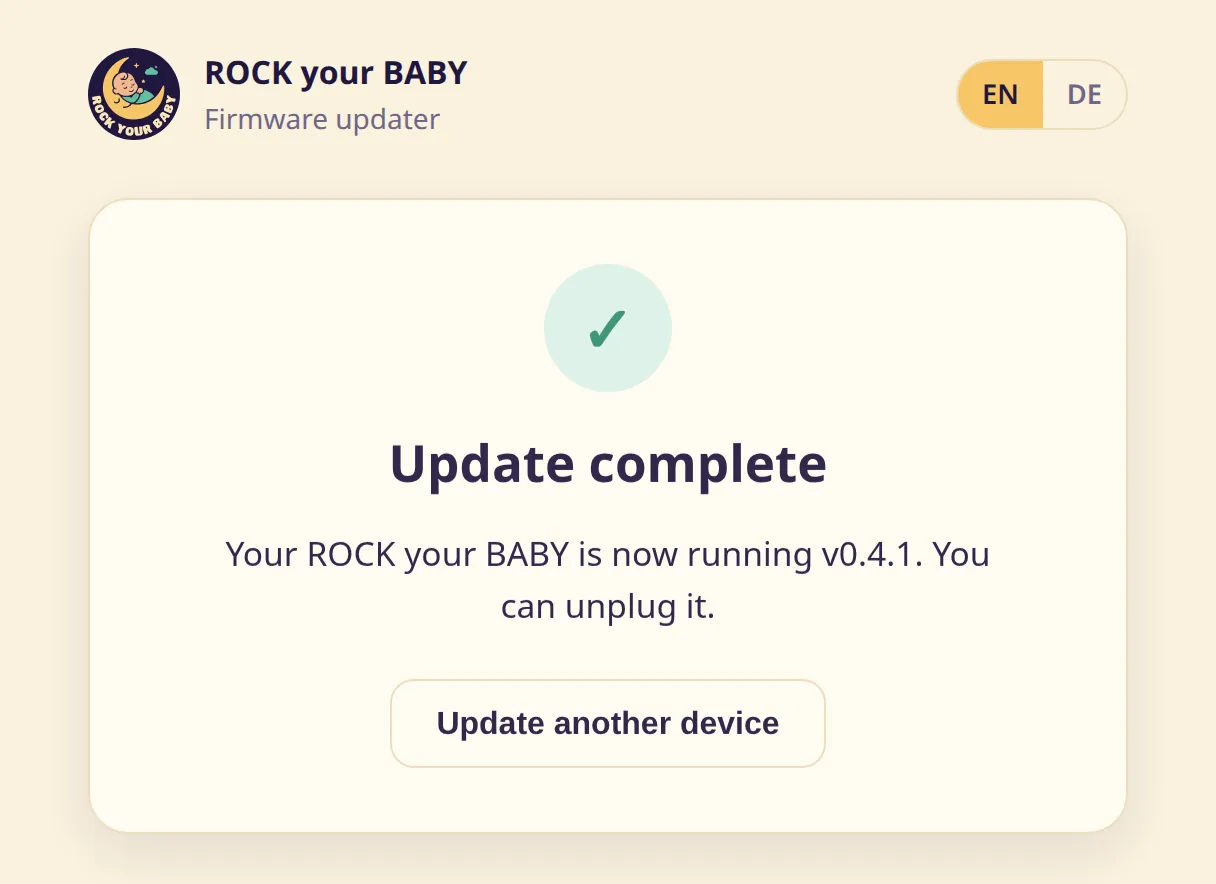
When you see “Update complete”, you’re done — unplug your device and it’s ready to use right away.
If something goes wrong
Section titled “If something goes wrong”Your device is safe — an interrupted update can’t harm it. Switch it off, switch it back on, and start over from step 1. For specific error messages, see Troubleshooting.
Your privacy
Section titled “Your privacy”During an update, only the anonymous chip ID of the ROCK your BABY, firmware version and the update result are recorded — no personal data.
Manual version: v0.4.0